How-To
Install nmbs
At the time of writing, nmbs is not yet in the Debian APT repository. Once it is:
# Get the CLI
sudo apt install nmbs

# Get the GNOME Files integration
sudo apt install nautilus-nmbs
Until then, you can download releases from GitHub.
GNOME
nmbs may be used from within the GNOME Files (Nautilus) application. It integrates seamlessly with the UI.
How to Classify a File
Right Click it in GNOME Files, if it can be classified, the “Classify” option will be in the context menu.
How to Delete a Classification from a File
Right Click it in GNOME Files, if it can be declassified, the “Clear Classification” option will be in the context menu.
How to view Classification Marking in a Column
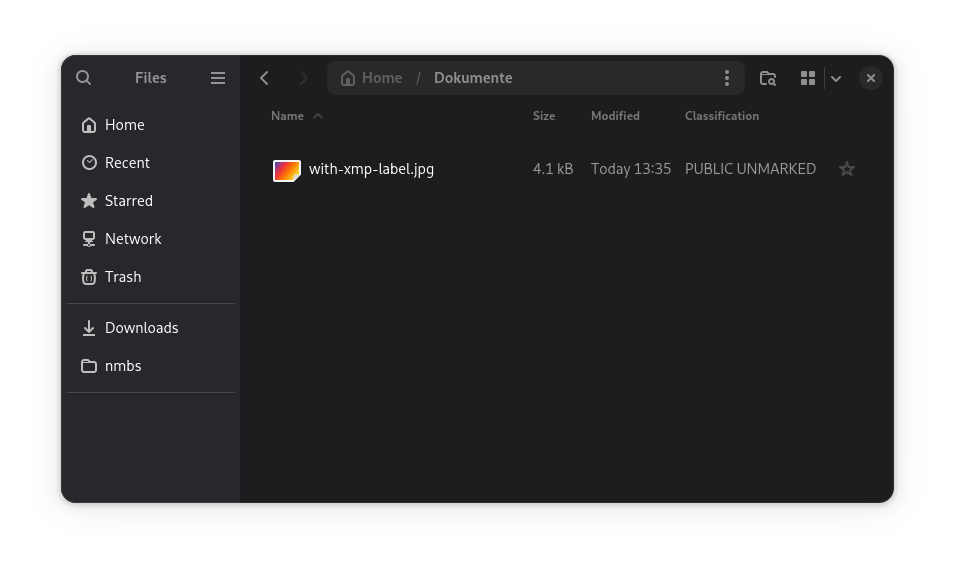
If you use the list view in GNOME Files, you can add extra columns. nmbs provides a “Classification” column which can be selected. When activated, the Marking of the Classification will be displayed as in the following example:
How to view Classification Details in the Properties Screen
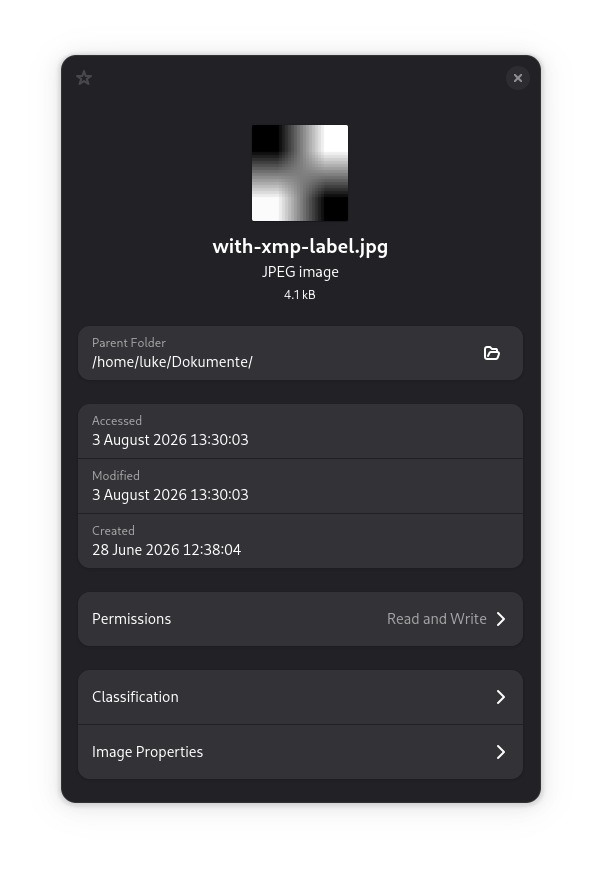
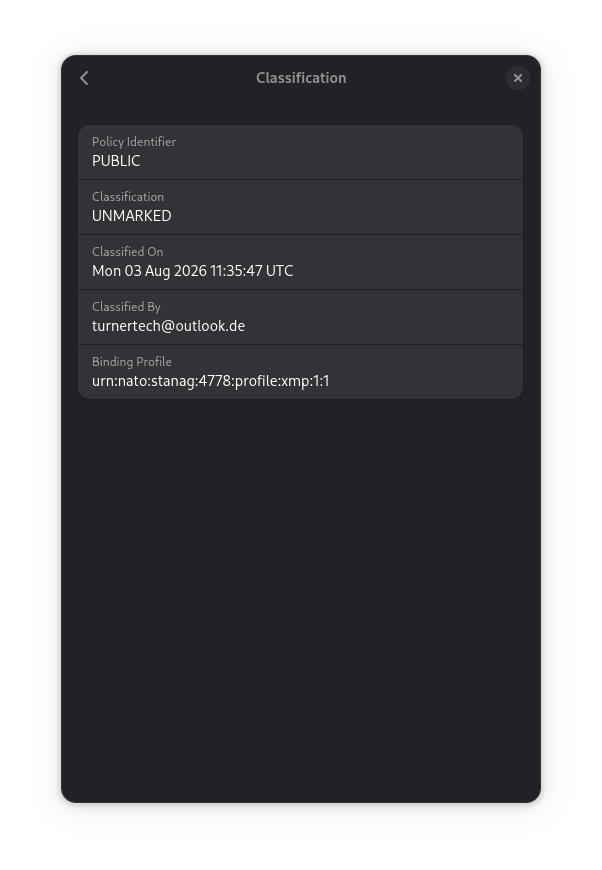
While the Marking may be seen in the GNOME Files columns, extra details like when and by whom the classification was made must be accessed in the “Properties” of the file. To access the details, open the properties screen of the Classified File (e.g. via Right Click -> Properties). If the file has been classified, there will be a “Classification” (exact word varies depending on system language) section you can enter. See the following example:
If you click on the Classification section, the details will be opened in a screen similar to the following:
How to configure the Originator ID
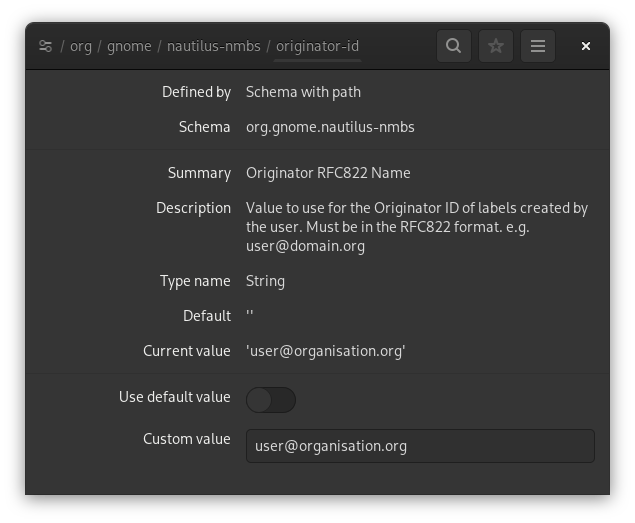
The Originator ID for any Classifications done by a user in the GNOME Files GUI may be set at the user lever in dconf. Please set an RFC822 (email address) style name, such as “user@organisation”. This value will only be used on labels set in GNOME Files, and not by the CLI.
dconf write /org/gnome/nautilus-nmbs/originator-id '"user@organisation.org"'
Alternatively, this may be set in a GUI tool such as dconf-editor
CLI
Administration
How to add Company Classifications
nmbs uses Security Policy Information Files (SPIF) to manage and verify policies. If you wish to add extra policies, simply place a valid SPIF file in the /etc/nmbs/spif directory. e.g.:
/etc/nmbs/spif/organisation.org.spif
Alternatively, you can also use the override environment variable in certain cases. Only use this if you know what you are doing, using the etc folder is a much better method.
NMBS_SPIF_DIR_OVERRIDE=/home/user/my-spif-folder
How to override a default SPIF
It is possible to override e.g. the NATO policy which is shipped with the package. This may be usefull if e.g. NATO update their policies, and you wish to have the latest version before nmbs is updated.
Simply ensure that your updated SPIF has the same securityPolicyId element, and a newer version attribute. Place it in the /etc/nmbs/spif directory as previously mentioned.
Find more Help
nmbs ships with:
- man pages
- –help in the cli
- API Docs